How to Create a Strong Password: 5 Proven Easy Tips
Soft tip for anyone learning how to create a strong password without the old confusing rules.
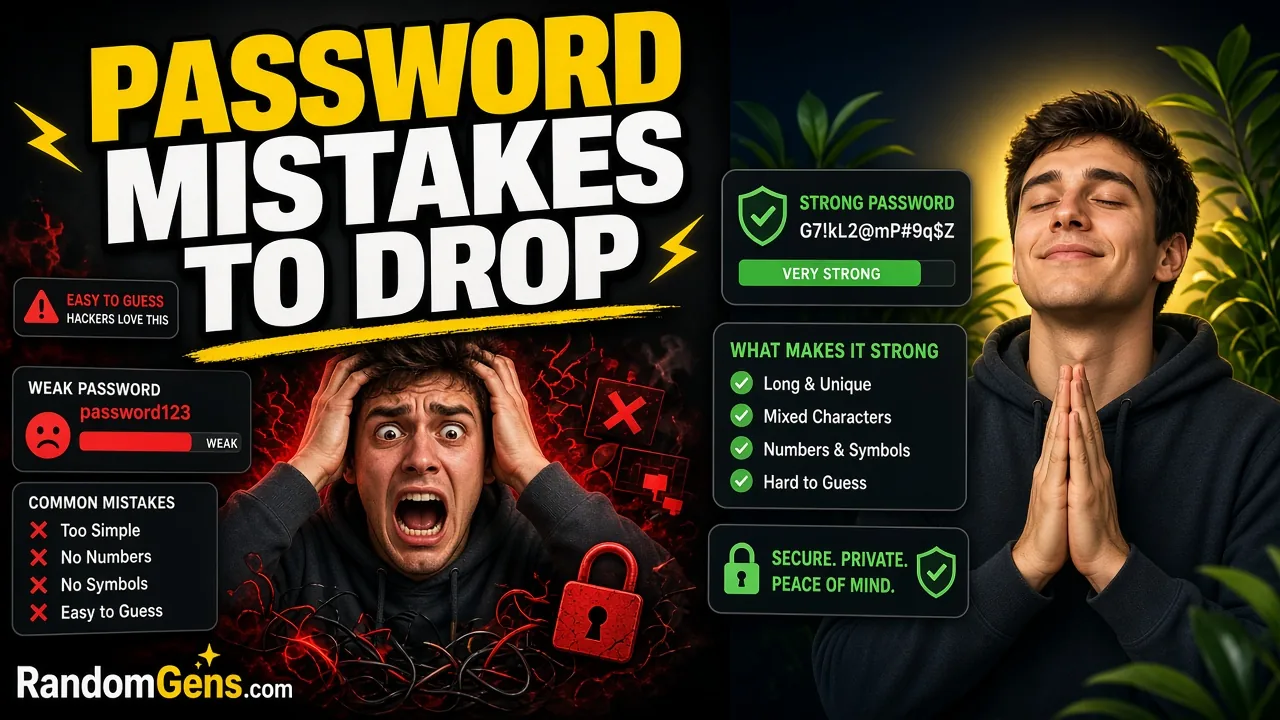
If you want to know how to create a strong password in 2026, start by forgetting half of what you learned ten years ago. The old routine was eight characters, one capital, one number, one symbol, and a forced change every 90 days. Most of us ended up with something like Summer2016!, then Summer2017!, and so on.
Public guidance has moved on. In my research I found that the US Cybersecurity and Infrastructure Security Agency (CISA) and the US National Institute of Standards and Technology (NIST) now put length and uniqueness ahead of clever symbol tricks, and NIST tells services to stop forcing calendar resets. This post turns that guidance into plain steps you can use today, for your own accounts, without buying anything.
A quick note before we start: this is general consumer guidance for regular people. It is not legal advice or enterprise security consulting. If your employer has its own password policy, follow that for work accounts.
What “strong” means now
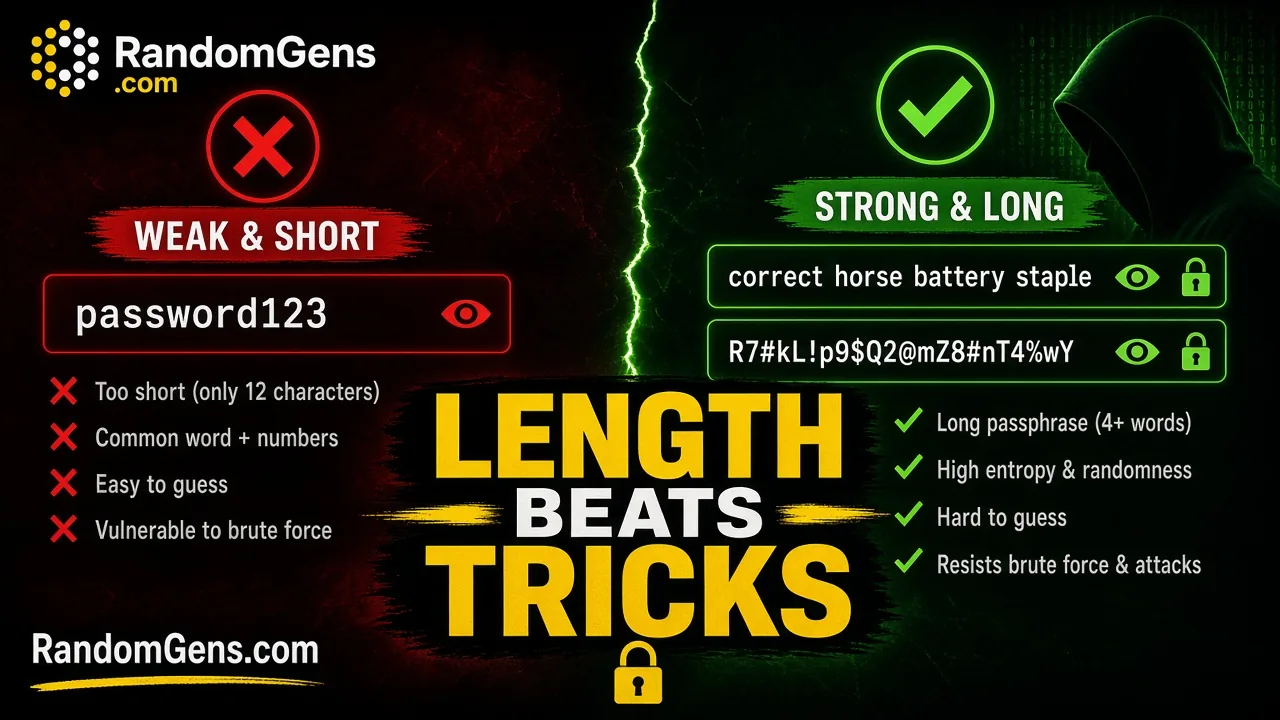
A strong password is one an attacker cannot guess, whether by trying common passwords or by running billions of combinations.
Length and uniqueness first
NIST’s current password guidance says plainly that password length is a primary factor in password strength. Short passwords fall to brute-force and dictionary attacks. Longer ones take far more work to crack, especially after a company’s password database leaks and attackers can test guesses offline with no login limit.
CISA’s strong password page puts it as three simple tips: make passwords long (at least 16 characters), make them random, and make them unique. A strong password follows all three.
Uniqueness matters as much as length. A perfect password used on five sites is only as safe as the weakest of them. If one leaks it, attackers will try it everywhere else.
Why forced complexity often backfires
The old “must include a capital, a number, and a symbol” rules sound sensible. NIST’s research summary explains why they disappoint in practice: people respond to them in very predictable ways. Someone who wanted password types Password1, and if a symbol is required, Password1!. Attackers know these patterns and try them early.
That is why NIST’s authenticator guidance now says services should not impose composition rules like required mixtures of character types. Instead, services should check new passwords against a blocklist of common, expected, or already-breached passwords, and should allow long passwords (at least 64 characters), spaces, password managers, and pasting.
One honest caveat: guidance is not the same as what every website does. Plenty of sites still demand a symbol or cap length at 16 or 20 characters. Work within their rules. Symbols do not hurt. They just are not the magic ingredient they were sold as.
Three rules that still hold
Strip away the old habits and three rules remain. They line up with CISA’s advice.
Make it long
Aim for 16 characters or more wherever a site allows it. That matches CISA’s minimum suggestion. NIST’s guidance for services sets a floor of 15 characters for passwords used on their own, and 8 characters only when the password is part of multi-factor login. For your own accounts, longer is simply better. If a site has a maximum, use the maximum or close to it.
Make it random (or a random-word passphrase)
“Random” means a person did not choose it. Humans are bad at randomness. We pick names, dates, sports teams, keyboard patterns, and favorite words, and attackers’ guess lists are built from exactly those things.
CISA describes two good ways to get randomness:
- A random string of mixed letters, numbers, and symbols, made by a generator.
- A passphrase of 4 to 7 unrelated words, such as CISA’s example
Horse Purple Hat Run Bay Lifting.
Both work. The key word in the second is unrelated. A song lyric or famous quote is not random.
Make it unique per account
Every account gets its own password. No exceptions for “unimportant” sites, because those are often the ones with weaker security that leak first. CISA’s page tells the story of a person named Emma whose reused password, exposed in a company breach, let someone into both her email and her bank. Losing the email account is what made recovery so hard, since password reset links go there.
Passphrase vs generated password (when to use each)
Passphrase for the one password you must remember
Some secrets have to live in your head. The main one is the master password for your password manager. You might also need one for your computer login or your phone backup account.
For these, use a long passphrase of several random, unrelated words. It is much easier to type and remember than cXmnZK65rf*&DaaD, and the length does the heavy lifting. Tips:
- Pick words randomly (dice, a word list, or a generator) rather than choosing ones that “feel” random to you.
- Use 5 or more words if you can. CISA’s examples show that adding words makes it stronger.
- Spaces between words are fine where the site allows them.
- Do not use this passphrase anywhere else.
Random generator strings for everything else
For the dozens of other accounts, such as shopping, streaming, and forums, you do not need to remember anything. A password manager stores and fills them, so use long random strings from a generator. They beat anything you would invent, and you never type them.
The split in one line: remember one strong passphrase, let a manager remember the rest.
How to create a strong password in practice
Option A: password manager generator
For most people, this is the best everyday path. CISA recommends password managers because they generate, store, and fill strong passwords, and warn you about weak or reused ones. Some are free, including the password manager built into your web browser. Others are paid. CISA suggests checking a trusted review source and reading reviews before choosing one.
NIST notes that password managers raise the chance that people pick stronger passwords, especially when the manager includes a generator. The flow is simple: when you sign up or change a password, let the manager suggest one, save it, and move on.
Option B: free random password tool (RandomGens)
Sometimes you want a password without opening your manager’s generator. That is what the free RandomGens random password generator is for.
Here is how it works right now:
- Open the page. A 12-character password with uppercase, lowercase, numbers, and symbols is already there.
- Drag the Password Length slider. It goes from 8 to 64 characters. I suggest moving it to 16 or higher to match CISA’s advice.
- Tick or untick Uppercase, Lowercase, Numbers, and Symbols. If a site rejects symbols, untick Symbols and add a few extra characters.
- Press Regenerate for a fresh one if you want.
- Select the text in the box and copy it, then paste it straight into your password manager or the sign-up form.
The password is built in your browser using the Web Crypto API (crypto.getRandomValues), and the tool’s password code does not send it to a server. Like most websites, the page still loads other scripts such as ads, so the safe habit is the same as always: copy, paste into your manager, close the tab.
Now the honest part. A free browser generator is not a password manager vault. RandomGens does not store your passwords, sync them across devices, fill them into login forms, or warn you about reuse. It creates a string and that is it. If you generate a password here and do not save it somewhere safe, it is gone. Use the tool to create, and use a password manager to keep.
Also skip the Download and Share buttons for passwords. Download can save a picture of the result, and images tend to end up in photo galleries and cloud backups. Copying the text is the cleaner path.
Quick checks before you save it
Before you click save on any new password, run through these:
- Is it at least 16 characters, or the longest the site allows?
- Is it different from every other password you use?
- Is it free of your name, birthday, pet’s name, username, or the site’s name?
- Did you save it in your password manager before closing the page?
- Did you avoid storing it in a plain text file, a note on your phone, or a screenshot?
The strength label on a generator (RandomGens shows Weak, Medium, Strong, or Excellent) is a quick guide based on length and character types. It is not a promise of how long the password would take to crack. When in doubt, go longer.
MFA and other companions (short)
Even a perfect password can be stolen. NIST points out that phishing, keystroke logging, and social engineering work just as well on long, complex passwords as on short ones. That is why the password should not be your only lock.
CISA’s MFA page explains multifactor authentication (also called 2FA or two-step verification): a second proof of identity on top of your password. Turn it on first for email, banking, and social media, then for shopping, gaming, and streaming accounts.
Prefer authenticator apps or security keys when you can
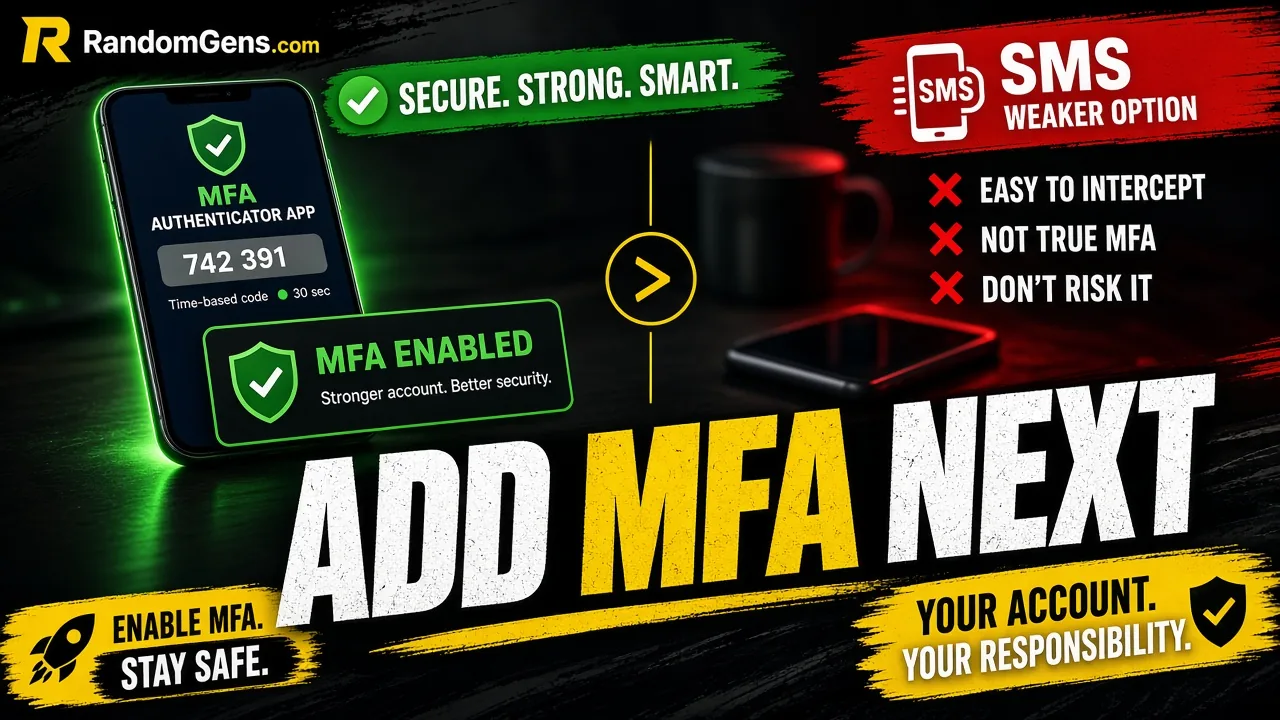
CISA says not all MFA methods are equal. It calls phishing-resistant MFA, based on FIDO/WebAuthn (security keys and passkeys), the strongest option, because it blocks login attempts on fake websites. Authenticator apps are a solid step up from text codes for most people. If a service offers a passkey or security key, it is worth trying.
Why SMS is weaker but still better than nothing
Text message codes can be intercepted or redirected, and CISA lists them among the weaker forms. But CISA is also clear that any MFA is better than no MFA. If SMS is the only option a service offers, turn it on. Then switch to an app or key later if the service adds one.
When to change a password (and when not to)
After a breach, phishing, or reuse scare
Change a password right away when:
- A service you use announces a breach.
- You typed your password into a page that turned out to be fake.
- You notice logins or activity you do not recognize.
- You find out you reused that password somewhere that leaked.
- You shared it with someone who should no longer have it.
NIST’s guidance for services says the same thing from their side: force a change when there is evidence a password has been compromised. When you change it, make the new one fully new. Do not just bump Spring24 to Spring25.
Why calendar resets are outdated for most people
NIST’s authenticator guidance now says services should not require people to change passwords periodically. The reason is human behavior. Forced resets every few months push people toward small, predictable edits, which attackers can guess easily once they know an old version.
So if your password is long, random, unique, and protected by MFA, you do not need to replace it just because a quarter has passed. Spend that effort fixing reused passwords instead. Your manager’s security report, if it has one, can show where to start.
Common myths to drop
“I need a new special character every month”
No. Adding ! or swapping a for @ is one of the first tricks attackers’ tools try. Monthly tweaks make passwords harder for you to remember, not much harder to guess. Use symbols when a site requires them, but do not rely on them.
“Pet names and birthdays are fine if I add a bang”
CISA specifically calls out birthdays and pet names as unsafe. Much of that information is easy to find on social media, and it sits at the top of guess lists. Biscuit2019! is still basically Biscuit. If you want something memorable, use a passphrase of random, unrelated words instead.
Quick checklist you can reuse
- Use 16+ characters wherever allowed.
- Use random strings from a generator, or a passphrase of 4 to 7 unrelated words.
- Give every account its own password.
- Store passwords in a password manager, not a text file or screenshot.
- Make your master password a long, random-word passphrase you use nowhere else.
- Turn on MFA, starting with email, banking, and social media.
- Prefer passkeys, security keys, or authenticator apps over SMS when offered.
- Change a password after a breach, phishing, or reuse scare, not on a calendar.
- Skip personal details like names, birthdays, and pets.
Frequently asked questions
How long should a strong password be in 2026?
CISA suggests at least 16 characters, and longer is stronger. If a site caps length, use the longest it allows.
Do I still need special characters?
Not as a rule. NIST guidance tells services not to force character mixes, and length matters more. Some sites still require a symbol, so include one there.
Is a passphrase better than a random password?
They solve different problems. A random-word passphrase is best for the few passwords you must remember, like your password manager’s master password. Random generator strings are best for everything your manager stores.
How often should I change my passwords?
Change them when there is a reason: a breach, a phishing mistake, strange account activity, or reuse. NIST guidance says services should not force routine periodic changes.
Is the RandomGens password generator a password manager?
No. It creates random passwords in your browser but does not store, sync, or fill them. Save each new password in a password manager.
Try the free RandomGens password generator
If you want a long random password right now, open the RandomGens random password generator, set the slider to 16 or more, copy the result into your password manager, and close the tab. It is free and needs no sign-up.
Tool question? Email support@randomgens.com.
Sources and further reading
- CISA, Use Strong Passwords: https://www.cisa.gov/secure-our-world/use-strong-passwords
- CISA, More than a Password (MFA): https://www.cisa.gov/MFA
- NIST SP 800-63B, Strength of Passwords: https://pages.nist.gov/800-63-4/sp800-63b/passwords/
- NIST SP 800-63B, Authenticators (password verifier requirements): https://pages.nist.gov/800-63-4/sp800-63b/authenticators/
- NIST, How do I create a good password?: https://www.nist.gov/cybersecurity-and-privacy/how-do-i-create-good-password
- Google Account Help, Create a strong password: https://support.google.com/accounts/answer/32040
- Microsoft Support, Create and use strong passwords: https://support.microsoft.com/topic/c5cebb49-8c53-4f5e-2bc4-fe357ca048eb